


Last Updated: November 1, 2026
Quick Summary
To adjust monitor settings after LASIK, match screen brightness to your room so the display is only slightly brighter than the wall behind it, and warm the color temperature to ease light sensitivity. Most patients find 40-60% brightness comfortable in a typical office and 20-35% in a dim room, with text scaled to 125% or 150%.
- Raise text size to 125% or 150% to stop the lean-in reflex that cuts blink rate.
- Set Night light or Night Shift to run after sunset for warmer, easier tones.
- Confirm the refresh rate is at the panel’s maximum to reduce flicker and motion blur.
- Keep the screen about one arm’s length away, roughly 20-28 inches from your eyes.
- Follow the 20-20-20 rule: every 20 minutes, look 20 feet away for 20 seconds.
Table of Contents
- Why Monitor Settings Matter for Post-LASIK Eyes
- Screen Time After LASIK: What to Expect in the First Weeks
- Step 1: Set Brightness, Contrast, and Color Temperature
- Step 2: Configure Windows and macOS Display Settings
- Computer Screen Settings for Eye Strain: Text Size, Dark Mode, and Blue Light
- Dry Eyes After LASIK and Computer Use: Managing Irritation at Your Desk
- The 20-20-20 Rule After LASIK and Other Screen Breaks
- Monitor Ergonomics and Workstation Setup for Recovery
- Frequently Asked Questions
Why Monitor Settings Matter for Post-LASIK Eyes
Your screen is now a recovery tool, not just a work surface. Your eyes are healing, and bright, harsh, or poorly tuned screens can add strain to a system that is still settling in.
Here is the core idea most guides skip. The American Academy of Ophthalmology’s guidance on digital eye strain notes that reduced blinking and close screen focus both drive irritation.
Below, we walk through exact settings for Windows and macOS, plus how to match them to your room and your symptoms. Get these right and screen time after LASIK becomes far more manageable.
Screen Time After LASIK: What to Expect in the First Weeks
Expect more sensitivity, some fluctuation, and dryness early on. Vision adjustment after laser eye surgery is a process, not a switch.
The first week is the most delicate. Your eyes tire quickly, and long stretches at a laptop or phone can trigger blurred vision and dryness.
Watch out: pushing through a long workday in week one often backfires. Sore, dry eyes the next morning are your signal to slow down.
Step 1: Set Brightness, Contrast, and Color Temperature
Start with the three settings that control how much light hits your eyes. Brightness, contrast, and color temperature do most of the work for visual comfort after LASIK.
Matching Brightness to Your Room
Your screen should match the room, not fight it. A screen that is much brighter than the space around it forces your eyes to constantly readjust. In a bright room, raise brightness. In a dim room, lower it.
A simple test: look at a white document on screen, then look at the wall behind your monitor. If the screen glows far brighter, bring it down.
Contrast and Color Temperature Adjustments
Contrast controls the gap between light and dark. Too high, and text edges feel sharp and harsh. Too low, and letters blur together.
Color temperature shifts the screen from cool blue to warm amber. Cooler tones can feel crisp but harsh; warmer tones feel easier on light-sensitive eyes.
The three core display settings do most of the work for post-LASIK comfort, so here is what each one controls and how to tune it.
| Setting | What it controls | How to adjust it |
|---|---|---|
| Brightness | How much light reaches your eyes | Match the room; screen only slightly brighter than the wall |
| Contrast | Gap between light and dark | Aim for comfortable, not maximum |
| Color temperature | Cool blue to warm amber tones | Warmer tones feel easier on light-sensitive eyes |
Step 2: Configure Windows and macOS Display Settings
Both platforms hide the useful controls a few clicks deep. Here is how to reach them fast, what each control actually does to a healing cornea, and starting values you can tune from.
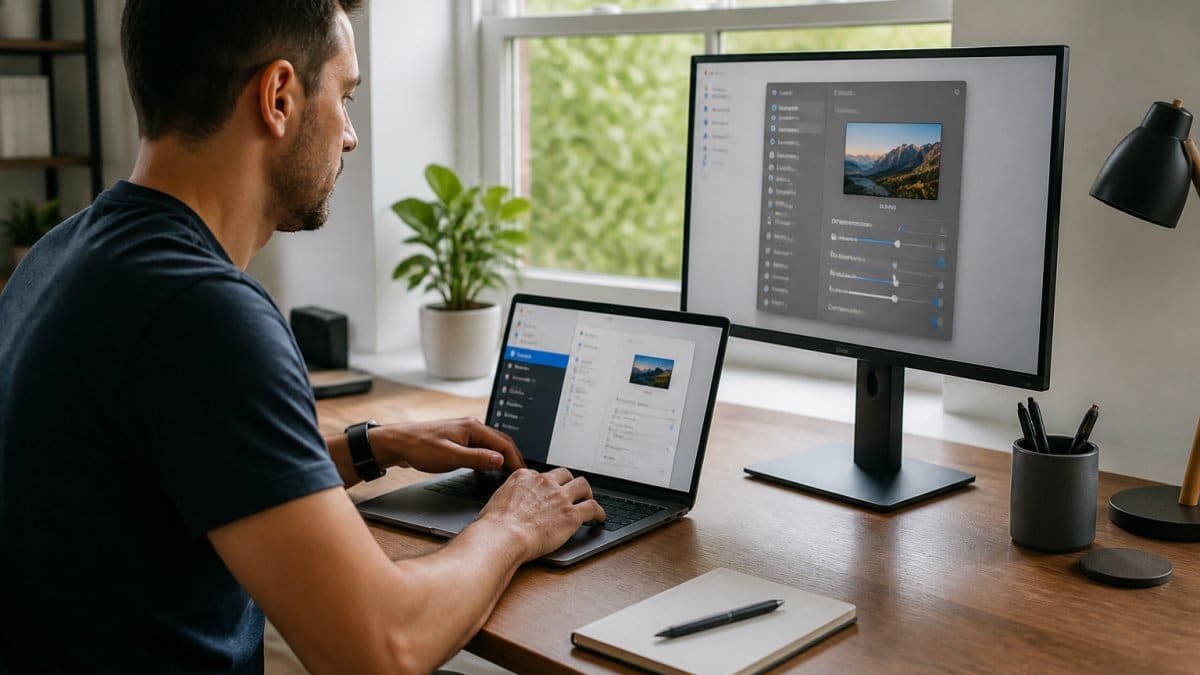
Windows 10 and 11 Display Setup
- Open Settings > System > Display.
- Drag the Brightness slider until a white document on screen is only slightly brighter than the wall behind your monitor. As a starting point, most post-LASIK patients find 40-60% brightness comfortable in a typical office and 20-35% in a dim room.
- Turn on Night light and set a schedule for evening use. The default strength is often enough; if halos around text feel worse at night, raise the strength one notch at a time.
- Open Advanced display to confirm the refresh rate is set to the panel’s maximum (often 60 Hz, 120 Hz, or 144 Hz). A higher refresh rate reduces the flicker and motion blur that can make light-sensitive eyes tire faster.
- Under Scale and layout, raise text size to 125% or 150% if letters feel small at arm’s length. This is the single most effective change for reducing the lean-in reflex that cuts blink rate.
- Use ClearType Text Tuner to sharpen on-screen text. Run it once per monitor; it makes letters crisper at lower brightness, which lets you keep the screen dimmer.
Windows also offers a Contrast themes option under Accessibility if standard contrast feels harsh.
If you use an external monitor, set brightness on the monitor’s own buttons first, then use the Windows slider only for fine-tuning. The two controls stack, and doubling up is a common reason screens end up too bright.
macOS Display Setup
- Open System Settings > Displays.
- Adjust Brightness with the slider, or enable Automatically adjust brightness. Automatic adjustment is helpful in a room with changing daylight, but turn it off if the screen keeps brightening unexpectedly and causing glare.
- Turn on Night Shift and set it from sunset to sunrise. The “More Warm” option is a reasonable starting point for light-sensitive eyes in the evening.
- Choose True Tone to match screen warmth to your room light. True Tone helps in mixed lighting; disable it if you need consistent color for photo or design work.
- Under Text size, bump up the interface if needed. On macOS you can also raise resolution scaling under Displays > Resolution to make everything larger without changing the physical monitor.
- Use Increase contrast in Accessibility for clearer edges. Pair it with Reduce transparency if frosted menu backgrounds feel distracting.
Both systems let you save these as habits. Set them once, then adjust by time of day. A practical pattern: warmer and dimmer after sunset, cooler and brighter in a sunlit room, and text scaled up permanently during the first month of healing.
These are comfort settings, not medical treatment. If glare, halos, or dryness get worse despite tuning, contact your eye-care professional for guidance.
Computer Screen Settings for Eye Strain: Text Size, Dark Mode, and Blue Light
Text size is the most underrated fix. If you lean in to read, your eyes work harder and blink less.
Dark mode helps some people and not others. Whether it feels comfortable can depend on room lighting, so try it and judge by how your eyes feel over time.
Blue light filters and Night Shift reduce cool tones in the evening. For a deeper look at screen-related strain, see our guide to computer vision syndrome.
- Increase font size and browser zoom
- Enable Night Shift or Night light after sunset
- Try dark mode in dim rooms, skip it in bright ones
Dry Eyes After LASIK and Computer Use: Managing Irritation at Your Desk
Dry eyes after LASIK and computer use go together because screens slow your blink rate.
Keep lubricating eye drops at your desk and use them as your eye-care professional directs. Ask your eye-care professional which lubricating drops are appropriate for you during healing.
Small desk changes help too:
- Point a humidifier or keep a glass of water nearby
- Avoid directing air vents or fans at your face
- Position your screen so windows are to the side, not behind it
If irritation persists despite these steps, contact your eye-care professional for guidance. For persistent dryness, you can also read about the best treatment for dry eyes.
The 20-20-20 Rule After LASIK and Other Screen Breaks
The 20-20-20 rule after LASIK is simple: every 20 minutes, look at something 20 feet away for 20 seconds. It resets your focus and gives your eyes a blink break.
Set a timer or use a break reminder app. For more practical habits like these, see these tips for faster recovery after eye surgery. During recovery, longer breaks than the rule suggests may be helpful, especially in the first week.
- 20-20-20: Every 20 minutes, look 20 feet away for 20 seconds
- Micro-breaks: Close your eyes for 10 seconds between tasks
- Long breaks: Every hour, step away for a few minutes
Monitor Ergonomics and Workstation Setup for Recovery
Position beats settings when your neck and eyes share the load, and after LASIK, position also controls how much glare reaches a healing cornea. Screen settings and the physical workstation both affect comfort during recovery.
Distance, Height, and Angle
- Distance: about one arm’s length, roughly 20-28 inches from your eyes to the screen. Sitting closer than that can make your eyes work harder to focus.
- Height: the top of the screen at or just below eye level, so you look down about 15-20 degrees. Looking slightly down may reduce how much of the eye surface is exposed, which can help limit tear evaporation.
- Angle: tilt the monitor back 10-15 degrees. A screen tilted toward your face reflects more overhead light straight into your eyes.
Managing Glare and Room Light
Glare is the most common post-LASIK complaint at a desk, and it is usually a room problem, not a monitor problem.
- Place the monitor perpendicular to windows so daylight falls across the screen rather than into your eyes or onto the glass.
- Use a matte screen or a monitor hood if you cannot move the desk. A matte finish scatters reflections instead of bouncing them back.
- Add a bias light behind the monitor, a small lamp aimed at the wall, so the screen is not the brightest object in a dark room.
Chair, Desk, and Break Station
- Set chair height so feet rest flat and knees are near 90 degrees; this keeps your head from drifting toward the screen.
- Keep lubricating drops, a water glass, and a humidifier within reach so you do not have to get up mid-task to use them.
- Point air vents and fans away from your face. Moving air is the fastest way to dry out post-LASIK eyes at a desk.
A recovery-friendly workstation is three things: screen at arm’s length and just below eye level, light falling across the screen rather than into your eyes, and drops within reach. Settings tune the display; ergonomics tune the room around it.
These ergonomics reduce the neck and eye strain that make recovery feel worse. If you are in the early weeks after surgery, our guide to LASIK post-operative care explains what to expect as healing progresses.
Frequently Asked Questions
What monitor brightness is best after LASIK?
There is no single number that fits everyone. A practical starting point is to set brightness so the screen looks about as bright as a sheet of white paper in the same room. If the screen glows brighter than the surrounding wall, lower it. If you squint to read, raise it slightly. Adjust again in the evening when ambient light drops. Your eyes are still adjusting during recovery, so expect to fine-tune these monitor settings after LASIK more than once in the first few weeks.
How long should I limit screen time after LASIK?
Most surgeons advise short breaks from screens for the first day or two, then a gradual return as comfort allows. Screen time after LASIK does not have a fixed cutoff, but dry eyes and fatigue are common early on, so build in frequent pauses. Start with shorter work blocks, use lubricating eye drops as directed, and increase screen time as your eyes tolerate it. Ask your surgeon for guidance specific to your healing progress and follow-up appointments.
Can screen use make dry eyes after LASIK and computer use worse?
Screen use does not cause a new problem, but it can aggravate dryness. People blink less often when staring at a monitor, and tears evaporate faster when they do. That combination can leave eyes feeling gritty or tired by afternoon. Setting a blink reminder, lowering screen brightness in dim rooms, positioning the monitor slightly below eye level, and using artificial tears as recommended can reduce irritation. Persistent dryness warrants a call to your eye doctor.
Should I use dark mode and blue-light glasses after LASIK?
Dark mode can help if a bright white background feels harsh, especially in a dim room, but it is a personal preference rather than a requirement. Blue-light glasses are a personal preference, and screen distance, brightness, and taking breaks are commonly cited as important factors. The 20-20-20 rule after LASIK, looking at something 20 feet away for 20 seconds every 20 minutes, is a simple habit that addresses the root cause of most screen fatigue.